Before you begin
This page assumes the API and portal are deployed and at least one device is Active. Analysts need the Highwind.Operator role; administration tasks need Highwind.Admin or an Access assignment that grants the permission.
Ask devices and run queries
The portal can ask one device a question, or ask many devices the same question at once, and shows the answers in the browser. Both need the Highwind.Operator role and an agent at 3.7.0 or later.
How quickly answers arrive
There is no push channel to devices. The management service never opens a connection to an endpoint; each agent asks the service for work. So a question waits until the device next checks in:
- Request polling every
FleetRequestPollIntervalSeconds(default 60 s). Most answers appear within a minute. - Expiry: an unanswered question expires after 5 minutes. An offline device shows Expired; ask again when it is back.
- Check in now (device page) asks the device for its health and waits for the answer. An online device answers within about a minute; the answer proves it is alive and running the agent.
- Full posture sync (device page, or Full posture sync (all devices) on Posture) has the device collect every posture answer at its next check-in, instead of waiting for the scheduled refresh. It does not wake a device that is off: devices only ever call out.
Ask one device
- Open Devices, select an Active device.
- Under Ask this device, pick a question and select Ask.
- The page waits up to 90 seconds and shows the answer as readable fields and tables, with the raw JSON underneath. If the device has not answered yet, select Check again.
Run a query across devices
- Open Queries. Pick a question (a built-in one, one of your saved queries, or a custom query) and a scope: every device that can answer, devices tagged X (see device groups), or only the devices I tick (up to 100; open Pick devices and filter by name).
- Optionally type a name in Save as to keep the question and its tag for next time. Saved queries appear in the Saved list with Use and Delete; an operator can delete only their own.
- Select Run. The result page counts answered, failed, expired and outstanding devices while the query runs, and you can Cancel it.
- When it finishes, the grid shows one row per device with the key values as columns. View opens the full answer in a full-width row under the device. Download CSV gives one row per device; for answers that are lists (installed software, ASR rules, App Control policies, firewall profiles, custom queries) Download CSV (one row per …) gives one row per device per item, with the device’s values repeated on each row so it filters and pivots cleanly in Excel.
- History on the Queries page lists the last 50 queries in the tenant: what was asked, of which devices, by whom, when, and how many answered. Every query is also in the API audit log.
What you can ask
| Question | Operation | What comes back |
|---|---|---|
| Security compliance summary | GetComplianceSummary | 14 Pass/Fail checks (real-time protection, signatures, tamper protection, firewall, Secure Boot, BitLocker, VBS, Credential Guard, HVCI, App Control enforcement…) and a score |
| Defender status | GetDefenderStatus | Engine and signature versions and ages, protection switches, tamper protection, running mode, last scans |
| Attack surface reduction rules | GetAsrStatus | Each configured rule by name with its mode (Block, Audit, Warn, Off), and counts. Exclusions are counted, not listed |
| App Control status | GetWdacStatus | Code integrity and HVCI enforcement, VBS state, active policies from CiTool |
| Device control status | GetDeviceControlStatus | Defender device control state and configured policy values |
| Firewall status | GetFirewallStatus | Domain, private and public profiles (effective policy), active network categories, firewall service state |
| Installed software | GetSoftwareInventorySummary | OS edition and build, plus up to 150 installed applications with version and publisher |
| Highwind configuration | GetHighwindConfigurationSummary | Highwind policy values on the device. Anything that looks like a secret, key or connection string shows only as (configured) |
| Agent health / version / capabilities | GetAgentHealth, GetAgentVersion, GetCapabilities | Agent uptime and state, build, and the operations it advertises |
| Custom queries | GetCustomCheckResults | Compliant / not compliant for each check in a saved custom query, with the value observed. Only on devices with FleetCustomChecksEnabled; see Custom queries |
These are the only questions an agent will answer. Each is a fixed, read-only collector on the device; the service cannot send a script or a command. Only custom queries carry a definition, and the agent re-validates it against its own compiled rules. Every question and every read of an answer is written to the API’s audit log.
Security posture and drift
The Posture page is the reason to run the fleet service. Every active device keeps its security posture current on the service by itself, and the portal judges it two ways: against fixed rules, and against the rest of your fleet. You get one screen that answers “which devices are actually protected right now, and which ones are different from the others?”
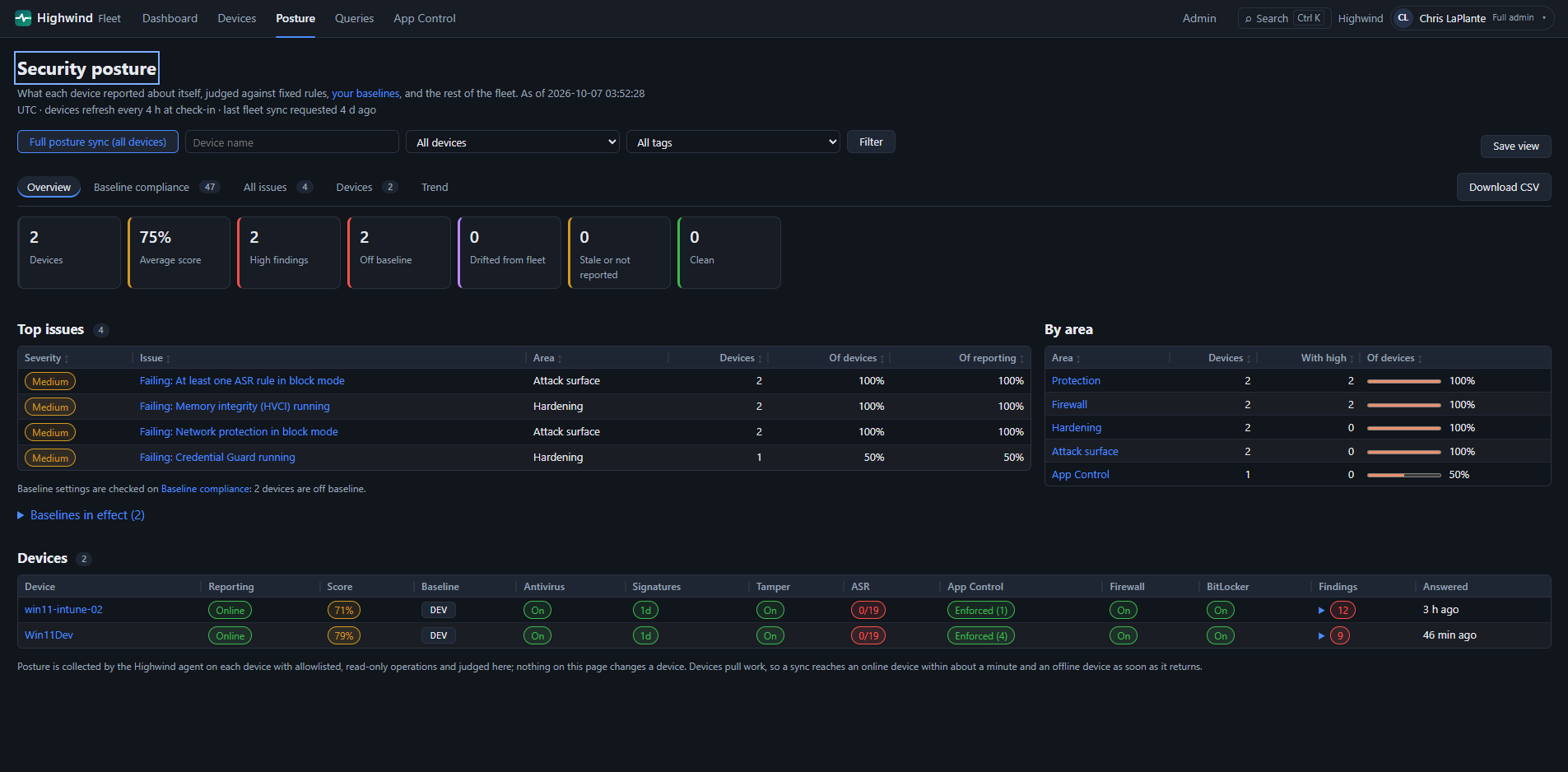 Posture overview: top issues, coverage by area, and each device against fixed rules and its baseline
Reading the portal. Every page opens with a one-line description, and every column heading that is not obvious explains itself when you hover over it. Drag the edge of a column heading to make it wider or narrower (or focus the edge and use the arrow keys); the portal remembers the widths for that page in your browser, and a double-click on the edge resets the table. Device states use plain words: Checking in, Device health and Trust on the device list, and Up to date, Different from expected, Catching up and No recent report in App Control. The App Control overview shows one card per compliance state with the device count, the share of devices and a one-line meaning; select a card for those devices. A device page opens with key facts (last heartbeat, agent version, join, enrolment, tags) and links to each section, shows posture as colour-coded cards and lists the latest answers one area at a time. Agent versions show without the build suffix; hover for the full value.
Why this, when you already have Intune and Defender?
Effective state, not intended state
Intune reports whether a profile was delivered. The Highwind agent reads what Windows is actually doing: the ASR mode in force after Group Policy, Intune and local overrides merge; the App Control policies CiTool reports as active, with their versions; the firewall’s effective default actions; whether Defender is in passive mode because something else took over.
Your fleet is the baseline
Nothing to author on day one. When at least five devices report and 60% or more agree, that becomes the expected value, and a device that differs is flagged as drift:
- a missing or older App Control policy
- an ASR rule in Audit where the fleet blocks
- a different device-control state
- a Highwind setting that differs
- an agent or Defender platform behind the others
When you are ready, pin it down with your own baseline.
Minutes, not hours
Devices refresh automatically every 4 hours, and Refresh all devices or Refresh posture now has online devices answer within about a minute. Use it right after a policy change to confirm it landed everywhere, instead of waiting for the next Intune sync and report cycle.
Yours, read-only, audited
Runs in your subscription, including Azure Government, with data in your SQL database. Posture is collected by fixed, read-only collectors: nothing on this page can change a device. Every refresh request and every read of the report is written to the audit log with the operator’s identity.
Use it
- Open Posture (Operator role). Tiles show device count, average compliance score, devices with high findings, devices that drifted from the fleet, and stale devices. Each tile filters the list.
- Top issues ranks every finding by severity and by how many devices have it, with % of devices and % of reporting devices, and a baseline · DEV badge naming the baseline that raised it. Select the count to list only those devices.
- The device grid shows antivirus, signature age, tamper protection, ASR, App Control, firewall and BitLocker per device, a score, and the findings (expand the count). Fleet baseline lists what the fleet agreed on.
- Full posture sync (all devices) marks every active device to report again. Online devices answer within about a minute; offline devices answer as soon as they return. Reload to see the new answers.
- The Tag filter narrows tiles, issues and devices to one device group. When a baseline is set, an Off baseline tile appears and baseline findings carry a baseline badge; the Custom column shows passing/total custom query checks when devices report them.
- Download CSV on each report exports what you see (see Reports below). Cells that a spreadsheet would treat as a formula are neutralised.
- On a device page, Security posture shows that device’s findings and every latest answer in full, with Check in now and Full posture sync.
Reports
Tabs across the top of Posture switch between four reports. Each one honours the Tag filter, which recounts every tile, percentage and list for that group of devices, and each has its own CSV.
| Report | Answers | CSV |
|---|---|---|
| Overview | Tiles, the 12 top issues and findings by area (devices affected, % of devices, high findings) | One row per device per finding |
| Baseline compliance | For every baseline setting: which baseline set it (Default or a tag), devices it applies to, compliant / not compliant / not reported, and % compliant as a bar. The not-compliant count opens the list of those devices | Per setting (?report=baseline), or per device per setting with expected and actual values (?report=baseline-devices) |
| All issues | Every distinct issue with an area filter, % of devices and % of reporting devices | One row per issue (?report=issues) |
| Devices | The device grid with the baseline each device was judged against; up to 500 rows on screen (filter or export for more) | One row per device per finding, with Baseline, DeviceTag, OrgUnit, Environment columns |
Which devices am I looking at? A device is checked on the default baseline plus, when one matches (device tag, then org unit, then environment), that tag baseline. Where both set the same setting, the tag’s value wins.
- Baseline compliance shows All devices, Default (no tag) and one Default + tag chip per tag baseline with its devices and % compliant.
- Pick a chip to see only those devices’ settings (
&plan=DEV): the tag’s settings first, then the default settings it does not set. - Baseline differences are listed here, not under Top issues.
- Both baseline CSVs add DeviceBaselines / AppliesToDevicesOn columns.
- Report links can be bookmarked and shared, for example
/posture?report=baseline&tag=DEV. Each CSV is/posture/export.csv?report=…&tag=….
Saved views
A view is a report tab plus its filters (tag, device filter, search, issue, area). Set them up once and reopen them from the Saved views bar at the top of Posture.
- Pick the report and filters, then Save view. Give it a name (up to 80 characters). Tick Shared to make it a team view for all operators.
- Choose a view in the list and select Open. The page opens with exactly those filters, and the address can still be bookmarked.
- Delete removes your own views. A shared view can be deleted by the person who saved it or an administrator. Nobody else sees your private views.
A view stores filters, never results: it always shows the current data, and a restricted operator who opens a shared view still sees only the devices in their own tags. Limits: 50 views per operator and 1,000 per tenant.
Trend over time
Every day at SnapshotHourUtc (02:00 UTC by default) the API judges every device, the same way the portal does, and stores the day’s numbers for the whole fleet and for each tag:
- device count and reporting devices
- average score and clean devices
- devices with high findings
- drift, off baseline and % of baseline checks met
- stale or missing
- the 25 top issues
Nothing is sent to devices for this; it reads the answers already stored.
- Open Posture → Trend. Pick a Scope (All devices or one tag) and a period (last 30, 90, 180 or 365 days).
- Tiles show today’s value and the change since the first day in the range (green is better). The chart plots average score, % of baseline met, % of devices with high findings and % off baseline.
- Below the chart: today’s top issues with % of devices, and one row per day. Download CSV exports the daily rows.
- An administrator can select Take snapshot now to retake today’s snapshot after a big change (taken within about a minute). Each day keeps one snapshot; retaking replaces it.
An operator limited to tags sees the trend only for those tags; All devices needs every-device access. The trend starts on the day the 3.7.0 schema with ManagementRound5 is deployed; there is no back-fill. Snapshots are kept 400 days.
Scheduled CSV exports
An administrator can have the service produce a report on a schedule: for example the off-baseline devices for each site every Monday at 06:00 UTC, for a ticket queue or a compliance file.
- Open Admin → Scheduled exports (
/admin/exports,Highwind.Adminonly). - Name the export and choose the report: Devices (one row per device per finding), Baseline per device, Top issues, Baseline compliance or Trend. Optionally choose a tag and a device filter (for example Off baseline).
- Choose Daily or Weekly (with a day) and the hour (UTC). Save. Run now produces one within about a minute.
- Files appear in the Files list with their row count, size and SHA-256. Download streams the CSV through the portal.
The export is generated inside the API from the whole database, two passes in pages, so it covers every device and never holds the fleet in memory. Files are stored compressed in your SQL database, kept 30 days, and limited to 64 MB compressed each (a failed run shows the reason on the schedule).
There is deliberately no destination: the service never sends a file anywhere, so a schedule cannot be used to move data out of your tenant. To feed another system, download through the API with GET /fleet/posture/exports/files/{id} using its own identity.
Who can download: an operator with every-device access gets any file; an operator limited to tags gets only files for one of their tags. Every generation and every download (allowed or refused) is audited: PostureExportGenerated, PostureExportDownloaded, PostureExportScheduleChanged; snapshots and saved views write PostureSnapshotTaken and PostureViewChanged.
Reporting settings
API settings, under Fleet:Reporting (App Service: Fleet__Reporting__…). Invalid values stop the API at start-up with the setting named.
| App setting | Default | Meaning |
|---|---|---|
Fleet__Reporting__SnapshotsEnabled | true | Take the daily snapshot. false stops the trend (requested snapshots too) |
Fleet__Reporting__SnapshotHourUtc | 2 | Hour (0–23, UTC) after which the day’s snapshot is taken. Pick a quiet hour |
Fleet__Reporting__SnapshotRetentionDays | 400 | Days of history kept. 0 keeps it forever |
Fleet__Reporting__MaxSnapshotScopes | 200 | Most tags given their own trend line each day (the largest tags win); 0 records only the whole fleet |
Fleet__Reporting__SnapshotTopIssues | 25 | Top issues kept with each snapshot |
Fleet__Reporting__ScanBatchSize | 2000 | Devices read per database round trip while judging a tenant (100–20,000) |
Fleet__Reporting__WorkerIntervalSeconds | 60 | How often the API looks for due snapshots and exports |
Fleet__Reporting__MaxExportSchedulesPerTenant | 50 | Most export schedules per tenant |
Fleet__Reporting__ExportRetentionDays | 30 | Days an export file is kept |
Fleet__Reporting__MaxExportStoredBytes | 67108864 | Largest export file, compressed (1 MB–1 GB). About 50 bytes per device per finding before compression |
Fleet__Reporting__MaxSavedViewsPerUser, …PerTenant | 50, 1000 | Saved view limits |
With more than one API instance, each instance runs the worker; a snapshot or export is claimed with an optimistic concurrency check, so it is produced once.
What is judged
| Area | Fixed rules | Drift from the fleet |
|---|---|---|
| Compliance | Each failing check from GetComplianceSummary. High: antivirus, real-time protection, tamper protection, signatures over 3 days, firewall, BitLocker. Medium: cloud protection, network protection, ASR, Secure Boot, VBS, Credential Guard, HVCI, App Control | — |
| Defender | Not in active mode; PUA protection off; no quick scan in 30 days | Platform or engine version behind the newest in the fleet |
| ASR | — | Each rule whose mode differs from the fleet majority (Medium when the fleet blocks) |
| App Control | — | A policy most devices run is missing, older, or audit-only where the fleet enforces |
| Firewall | Service stopped (High); a profile allows inbound by default | — |
| Device control | — | State differs from the fleet majority |
| Highwind | — | Agent older than the fleet; a Highwind policy value differs from the fleet |
| Coverage | Never reported (Info); newest answer older than 3 refresh intervals (at least a day) | — |
Settings
API settings, under Fleet:Management. In App Service, set them as application settings with double underscores. The defaults suit most fleets.
| App setting | Default | Meaning |
|---|---|---|
Fleet__Management__PostureRefreshIntervalMinutes | 240 | How often each active device refreshes its posture at check-in. 0 turns automatic refresh off; the refresh buttons still work |
Fleet__Management__PostureMaxResultAgeDays | 30 | Answers older than this are left out of the report |
Fleet__Management__MaxDevicesPerPostureReport | 5000 | Devices per report page. The portal reads up to 10 pages, each from where the last ended (a cursor), so later pages are as fast as the first |
Fleet__Management__CompletedMessageRetentionDays | 30 | Finished requests and their answers are deleted after this many days, keeping the database small. 0 keeps them forever. Keep it at least PostureMaxResultAgeDays |
Fleet__Management__MessagePruneBatchSize | 5000 | Rows deleted per maintenance batch |
The portal needs matching builds for each feature. The agent needs no update for the first group: any 3.7.0 agent already answers these questions.
- 1 October 2026 or later (API, schema and portal): the minimum for these pages.
- 2 October 2026 or later: the baseline, custom queries, tags and scopes, including the agent.
- Later 2 October 2026 builds whose schema includes migration
ManagementRound3(API, schema and portal; the matching agent adds load jitter): tag baselines, Access permissions, the Admin area and the custom-query assistant. - 3 October 2026 builds whose schema includes migration
ManagementRound5(API, schema and portal; no agent change): saved views, the trend, scheduled exports and cursor paging. - Later 3 October 2026 builds whose schema includes
ManagementRound6(no agent change): the activity log, baseline plan chips and App Control management. - Schema with
ManagementRound7: App Control policy sets, drift and trend. For policy hashes, options and the Windows build, you also need the matching agent.
Posture baselines
The fleet majority is a good start, but it cannot tell you the majority is wrong. A baseline says what every device should report.
The portal compares each device’s effective state against it, whatever set the value: Intune, Group Policy, a script or a local administrator, and lists every difference on Posture with the severity you chose.
A setting in the baseline replaces fleet-majority drift for that setting; settings you leave out still fall back to the majority.
- Open Admin → Baselines (
/admin/baselines). Everyone can read it; editing needsHighwind.Adminor the Baselines permission. - The first tab is the Default baseline, used for every device. Settings are grouped by area. Each row shows Fleet today (the three most common values and how many devices report each) and Match (how many devices already meet the value you pick).
- Pick an expected value and a severity (High, Medium, Low) per row. Leave a row at “—” to keep using the fleet majority for it. Fill empty rows from fleet majority pre-fills every empty row where at least 60% of devices agree; review it, then Save baseline.
- Saving is versioned: if another administrator saved since you opened the page, your save is refused with a message and nothing is overwritten. Reload and apply your change again.
Different baselines for different devices
Servers, kiosks, labs and a pilot ring rarely share one standard. A tag baseline applies to devices carrying a tag and adds to the default for those devices: they are checked on every default setting plus the tag’s settings, and the tag’s value wins where both set one. Set only what differs for the group.
- On Admin → Baselines, type or pick a tag in New tag baseline… and select Open. The list offers the tags devices actually report.
- Set every expectation for that tag baseline (for example ASR: Block credential stealing = Audit on
lab), then Save baseline. Fleet today and Match now count only devices with that tag. - A device uses the baseline for its device tag, else its org unit, else its environment, on top of the default. Tags match case-insensitively. Only one tag baseline applies to a device.
- Delete on a tag tab removes that baseline; its devices are then checked on the default alone. Up to 100 tag baselines per tenant.
DEV is judged only against DEV; every other device is judged against Default. On Posture, a DEV finding reads “Block here; the DEV baseline expects Audit”, the issue carries a baseline · DEV badge, the device grid shows DEV in its Baseline column, and Baseline compliance lists Default and DEV separately.
| Area | Settings |
|---|---|
| Defender antivirus | Antivirus, real-time protection, tamper protection, behavior monitoring, download scanning (IOAV), running mode, cloud protection and block level, sample submission, PUA protection, network protection, controlled folder access, maximum signature age (days; a device passes at or below it) |
| Attack surface reduction | Every ASR rule by name: Block, Audit, Warn, Off or Not configured |
| App Control | Kernel-mode and user-mode enforcement (Off, Audit, Enforced); each non-system policy devices report (Enforced, Audit or Missing) |
| Firewall | Domain, private and public profiles: enabled, default inbound action |
| Device control | State, removable storage deny-all |
| Compliance, custom queries, Highwind policy | Each compliance check (Pass/Fail), each custom query marked Include in posture (Compliant/NonCompliant), and each Highwind policy value devices report |
Baselines are stored in the service (GET /fleet/posture/baselines, PUT | DELETE /fleet/posture/baseline, at most 500 settings each) and every save and delete is audited with who made it. A baseline judges; it does not enforce. Nothing on these pages changes a device; fix differences with the tool that owns the setting (Intune, Group Policy, Defender for Endpoint).
Custom queries
The built-in questions cover Defender, ASR, App Control, firewall and device control. Everything else your security standard says becomes a custom query, for example:
- “LSA protection is on”
- “the vulnerable driver is gone”
- “the EDR sensor service runs and starts automatically”
- “our agent is at least version 5.2”
A custom query checks a registry value, a file or a service, judged compliant or not on every device, in about a minute.
1. Allow it on devices
Custom queries are off on every device until its own policy turns them on. Set Allow administrator-defined custom checks in the ADMX (Highwind → Fleet Agent), or the registry value directly, then restart the agent:
reg add HKLM\SOFTWARE\Policies\Highwind /v FleetCustomChecksEnabled /t REG_DWORD /d 1 /f
Restart-Service HighwindFleetAgent
A device without it answers HW-CAP-001 (“the device cannot answer this operation”) for custom queries; the rest of the fleet and every other question are unaffected.
2. Write a custom query
Open Admin → Custom queries (/admin/custom-queries; Highwind.Admin or the Custom queries permission). Give it a name and write one check per line in plain English. The editor helps as you type:
- Suggestions. Start a line with
HKLM\,fileorservice, or type a word such as LSA, SMB, LAPS, Sense or Defender: a list offers well-known keys, services and ready-made checks (recipes). Tab or Enter accepts, Esc closes. - Did you mean? When a line is close but not right,
HKEY_LOCAL_MACHINE\,==,>=,is enabledon a service, a misspeltCurrentControlSet, a missingHKLM\, a hint shows the corrected line with Yes / No. Nothing changes until you choose Yes. - Remove a line. Every line in the checklist under the editor has a ✕ that deletes it from the query; Clear all empties the editor after asking. Ready-made checks you add from the list land there too, so a wrong pick is one click to undo.
- Preview shows each line as the sentence the portal understood, or the reason it was refused. Save when it reads right. Optionally set a default tag, and tick Include in posture to have every device answer it with its regular posture refresh and show failures on Posture.
# Lines starting with # are notes. Prefix "Name": to name a check.
"LSA protection": HKLM\SYSTEM\CurrentControlSet\Control\Lsa\RunAsPPL = 1
HKLM\SOFTWARE\Policies\Microsoft\Windows Defender\Policy Manager value DefaultEnforcement equals 2
HKLM\SOFTWARE\Policies\Microsoft\Windows Defender value DisableAntiSpyware is not 1
HKLM\SOFTWARE\Policies\Microsoft\Windows\LAPS exists
HKLM\SOFTWARE\Contoso\Agent\Version at least 5.2
HKLM\SOFTWARE\Contoso value "Display Name" contains "Contoso Ltd"
service Sense is running
service Sense is automatic
service RemoteRegistry is disabled
service TlntSvr does not exist
file %SystemRoot%\System32\drivers\vulnerable.sys does not exist
file %ProgramFiles%\Windows Defender\MsMpEng.exe version at least 4.18.24090.11
file %ProgramFiles%\Contoso\agent.exe sha256 equals 3A7BD3E2360A3D29EEA436FCFB7E44C735D117C42D1C1835420B6B9942DD4F1B
# One of several values (OR between values; equals only)
HKLM\SOFTWARE\Policies\Microsoft\Windows Defender\Policy Manager\DefaultEnforcement = 1 or 2
HKLM\SOFTWARE\Contoso value Mode is one of 1, 2, 3
service WinDefend is running or stopped
# Several conditions in one check: AND (all must hold) or OR (any may hold), up to 5, one joiner per line
file %ProgramFiles%\Contoso\a.exe exists and file %ProgramFiles%\Contoso\b.exe exists
"Remote Registry off": service RemoteRegistry is disabled or service RemoteRegistry does not exist| Kind | You can write | Limits |
|---|---|---|
| Registry | HKLM\…\Key exists | does not exist; HKLM\…\Key\Value = | is | equals | is not | at least | at most | contains X (or …\Key value Name … when the name has spaces). Numbers compare as numbers (0x hex accepted), versions as versions | Only HKLM\SOFTWARE and HKLM\SYSTEM\CurrentControlSet. A value whose name looks like a credential (password, secret, token, private, API key, connection string, SAS) can only be checked for existence, and its data is never returned |
| File | file <path> exists | does not exist | version at least | version at most | sha256 equals | sha256 is not | Only under Program Files, ProgramData and Windows (%ProgramFiles%, %ProgramData%, %SystemRoot% allowed). Junctions and links are not followed; contents are never returned; files over 512 MB are not hashed |
| Service | service <name> exists | does not exist | is running | is stopped | is not running | is automatic | is manual | is disabled | State and start type only |
| AND / OR | … = 1 or 2, … is one of 1, 2 (registry values and service states, equals only); <check> and <check> or <check> or <check>, each part starting with service, file or HKLM\ | Up to 5 conditions per check, AND or OR (not both) on one line; each part follows the limits above. A value choice cannot be mixed with AND/OR on the same line. The result shows every value read (1 | 3). Needs agents from the 3 October 2026 builds; older agents answer the whole query as unavailable |
3. Run it and read the answer
- Select Run on the query’s row (Run, Edit and Delete sit together), or pick it under Custom queries on Queries. Choose every device, a tag, or ticked devices, and run.
- The result opens with Compliance by check: for each check, how many devices are compliant, not compliant or could not answer, and the percentage. Below it, one row per device; View shows each check with the value observed.
- Download CSV (one row per check) gives one row per device per check; filter on compliant = No to get the fix list.
Highwind.Admin, or a group given the Custom queries permission, can write or change one, or send one ad hoc through the API; operators can run the saved ones but cannot change what is read. The editor’s suggestions and corrections run in the portal from a fixed list; nothing you type is sent to an AI service. The service validates every query before it is stored and again before it is sent; the agent validates it a third time against rules compiled into it, whatever the service sent, and answers only when the device’s own policy allows it. Nothing is written, started, stopped or executed. At most 25 checks per query; at most 25 checks across all queries marked Include in posture (the first saved wins).
Client configuration
Choose which reports devices send without touching Group Policy. Where the portal sets a report, its value wins over local ADMX; reports you leave on Not set stay under local policy.
- Open Admin → Client configuration (
/admin/client-configuration). OnlyHighwind.Admincan open it. - The first tab, All devices, applies to every device. To scope a change, type or pick a tag in New tag… and select Open. A tag (device tag, organisational unit or environment) overrides All devices for devices that carry it; the device tag wins over organisational unit, which wins over environment.
- For each report pick Not set, On or Off, then Save. On a tag tab the All devices column shows what the default says. Delete removes a tag’s configuration.
- Devices pick the change up at their next heartbeat and restart their session about 5 seconds later. Offline devices keep their last values.
FleetLabChangeEnabled), AI egress and the heartbeat interval. Set FleetPortalConfigurationEnabled = 0 (ADMX: Accept client configuration from the management portal) on a device that must ignore the portal. A portal On for a sensitive report (persistence audit, AI security, last user) overrides the local choice. The saved values live in %ProgramData%\Highwind\fleet\portal-configuration.json; only the listed on/off reports are ever read from it. Every save is audited.
Needs the ManagementRound43 database migration, the updated API and portal, and agent 3.7.0 or later on devices.
Device groups, Access and Admin
Group devices with the tags you already use for Highwind reporting, then give each Entra group exactly the devices and actions it needs. Everything administrative lives under Admin, at the far right of the navigation.
1. Tag devices
Set Device tag, organizational unit and environment (ADMX Highwind → Device Tagging), or the registry values DeviceTag, OrgUnit and Environment (REG_SZ) under HKLM\SOFTWARE\Policies\Highwind. Restart HighwindFleetAgent; the agent reports them when it registers. Values longer than 64 characters are ignored.
- Devices shows a Tags column, a tag filter and a sort (name, last seen, agent version, tag, registered). A tag matches the device tag, org unit or environment.
- Queries can target Devices tagged X; Posture can filter to one tag; tag baselines set a different standard per tag.
- Matching follows the database collation: case-insensitive on Azure SQL’s default.
2. The Admin area
Admin (/admin) shows a tile for each area the signed-in person may manage, and nothing else; someone with no administration permission sees a short note instead. Each page opens with an Admin › … trail back to it.
| Tile | Page | Needs |
|---|---|---|
| Access | /admin/access | Highwind.Admin only |
| Enrollment | /admin/enrollment | Enrollment (list, revoke) or Mint secrets (mint) |
| Device identity | /admin/device-identity | Enrollment; creating the certificate authority is Highwind.Admin only |
| Baselines | /admin/baselines | Baselines |
| Custom queries | /admin/custom-queries | Custom queries |
| Activity log | /admin/activity | Highwind.Admin only |
| App Control management | /admin/app-control | Highwind.Admin only (see App Control management) |
Old addresses (/settings/scopes, /enrollment, /device-identity, /posture/baseline, /queries/checks) still work. The portal hides what you cannot do, but the API decides: every permission is checked again by the service on every call.
3. Create the standard groups
So every tenant looks the same, create one Entra security group per role with New-HighwindFleetGroups.ps1. It creates any missing group (you become owner), gives it its app role on the API, and, with -ApiBaseUrl, adds its Access assignment for every device. Re-running it changes nothing that exists. Use -WhatIf to preview.
Download New-HighwindFleetGroups.ps1
| Group | App role | Access preset (all devices) |
|---|---|---|
| Highwind Fleet Admins | Highwind.Admin | — (unlimited) |
| Highwind Fleet Read Only | Highwind.Operator | Read only |
| Highwind Fleet Operators | Highwind.Operator | Operator |
| Highwind Fleet Device Managers | Highwind.Operator | Device manager |
| Highwind Fleet Policy Authors | Highwind.Operator | Policy author |
| Highwind Fleet Enrollment Officers | Highwind.Operator | Enrollment officer |
| Highwind Fleet Delegated Admins | Highwind.Operator | Delegated admin |
.\New-HighwindFleetGroups.ps1 -Cloud AzureUSGovernment
# or also create the Access assignments (needs Highwind.Admin and the Azure CLI pre-authorized, see Verify step 2)
.\New-HighwindFleetGroups.ps1 -Cloud AzureUSGovernment -ApiBaseUrl "https://$apiApp.$webSuffix"
Needs Groups Administrator (or User Administrator) and Application Administrator. Assigning an app role to a group needs Entra ID P1 or P2; without it the script warns and you assign people directly. To limit a group to some devices, edit its row in Admin → Access and list tags. Use -GroupPrefix for a different naming standard.
4. Give a group access
- Open Admin → Access.
- Who: start typing a name in Search Entra users and groups and pick a result; the object ID and name fill in. Without the Graph permissions below, paste the object ID of a security group (or a user) and a display name.
- Devices: open the device drop-down and tick the tags this group manages, or tick none for All devices. A tag no device reports yet can be typed in the box under the list.
- Role: pick a preset and every permission it gives is ticked below (grouped as Devices, Administration and App Control), so you see exactly what you are granting. Change any tick and the role becomes Custom. Save. Edit on a row loads it back into the form; Remove deletes it. Changes apply within 30 seconds.
- Check my permissions (account menu, or
/account#permissions) lists every permission, whether you have it and where: every device, the tags it is limited to, or tenant-wide. Anyone signed in can open it.
# Lets the API's managed identity find users and security groups by name. Read-only; nothing is stored.
$graphSpId = az ad sp show --id 00000003-0000-0000-c000-000000000000 --query id -o tsv
$apiMi = az webapp identity show -g $rg -n $apiApp --query principalId -o tsv
# User.ReadBasic.All
Invoke-Graph POST "servicePrincipals/$apiMi/appRoleAssignments" @{ principalId = $apiMi; resourceId = $graphSpId; appRoleId = "97235f07-e226-4f63-ace3-39588e11d3a1" }
# GroupMember.Read.All
Invoke-Graph POST "servicePrincipals/$apiMi/appRoleAssignments" @{ principalId = $apiMi; resourceId = $graphSpId; appRoleId = "98830695-27a2-44f7-8c18-0c3ebc9698f6" }
The search runs in the API with its own identity, only for Highwind.Admin (GET /api/v1/fleet/scopes/directory?q=), and reads only the API’s home tenant. Without these permissions the search box says so and you paste the object ID as before.
| Permission | Allows | Applies to |
|---|---|---|
| View | Devices, posture, health, query results, identity panels | Devices in the assignment’s tags |
| Run queries | Requests, fleet queries, saved queries, Check in now, Full posture sync | Devices in the assignment’s tags |
| Manage devices | Approve, disable, reinstate, revoke | Devices in the assignment’s tags |
| Baselines | Create, edit and delete posture baselines | Tenant |
| Custom queries | Write, change and delete custom queries; send them ad hoc | Tenant |
| Enrollment | List and revoke enrollment secrets; device identity settings | Tenant |
| Mint secrets | Mint enrollment secrets (justification required) | Tenant |
| Preset | Permissions |
|---|---|
| Read only | View |
| Operator | View, Run queries |
| Device manager | View, Run queries, Manage devices |
| Policy author | View, Run queries, Baselines, Custom queries |
| Enrollment officer | View, Enrollment, Mint secrets |
| Delegated admin | All seven (everything except Access, certificate authorities and App Control uploads, which stay with Highwind.Admin) |
- Several assignments add up. A person matched by their own assignment and their groups’ gets the union of the permissions and the union of the devices. An assignment for all devices covers everything.
- Unassigned operators keep what they had before 3.7.0: View and Run queries on every device. Choose see no devices and Apply to make an assignment mandatory.
- Highwind.Admin is never limited, and only it manages Access. Members of an assigned group still need the
Highwind.Operatorapp role to sign in.
groups claim to the API app registration (Token configuration → Add groups claim → Security groups, emitted as object IDs). Without it only user assignments match. A user in more than 200 groups receives no groups in the token (Entra “overage”) and matches only on their own object ID; assign such users directly.
5. Your name, tenant and role in the header
The top-right corner shows who is signed in, the tenant name and a role pill: Full admin, the preset name (for example Device manager), Custom access or No access. Hover the pill for the exact permissions and devices in scope.
The tenant name comes from the fleet database; set or correct it in Admin → Access → Tenant name (PUT /api/v1/fleet/scopes/tenant-name, Highwind.Admin, audited as TenantSettingsChanged). Until it is set, the header shows the start of the tenant ID.
6. Activity log: who did what
Admin → Activity log (/admin/activity, Highwind.Admin only) is the tenant’s audit trail in plain words, newest first: the person (by name), what they did, the device, the outcome and any error code.
- Filter. Choose People (portal and API actions), Devices (registration, check-ins, answers), Service (schedules, snapshots, expiry) or All, then narrow by person, action, outcome (allowed or refused), device name or dates.
- Export CSV downloads up to 100,000 rows with the same filters.
- Names are taken from each person’s own sign-in, so they appear from the first action after this release. Older rows show the object ID.
- Reading or exporting the log is itself audited (
AuditLogRead,AuditLogExported).
7. Minting secrets is accountable
Minting an enrollment secret now asks for a justification (10–500 characters, for example a change number). The secret list shows Minted by and the justification, and both are written to the EnrollmentTokenIssued audit event. A mint without a justification is refused with 400.
What a tag is, and is not. Tags are reported by the device, and a local administrator on a device can change them. Tag-limited access separates operators from each other’s devices; it is not a boundary against the device’s own administrator. Use Entra role assignment and Conditional Access to control who is an operator at all.