App Control management (optional)
Intune tells you an App Control policy was assigned. It does not tell you which policies are actually running on each device, at which version, in audit or enforcement, or which devices quietly kept an old one. Highwind already asks every device for that with its posture refresh; this module turns those answers into a fleet-wide policy inventory with rollout and drift.
It is off by default. Each level adds one capability to the one before it:
- Visibility Only reads what is there, compares it with what you expect and changes nothing. Policy inventory adds no device traffic and reuses the
GetWdacStatusanswer posture already collects. - Two optional evidence sources (installed applications and App Control audit/block events) need both a tenant switch and a device policy.
- Governance adds the Application Control Board (section 6).
- Recommend adds deterministic rule candidates for Board decisions (section 7).
- Generate builds validated policy packages from approved rules for an approver to sign off and export (section 10).
Highwind never deploys a policy. You deploy the package with your own tool (section 11).
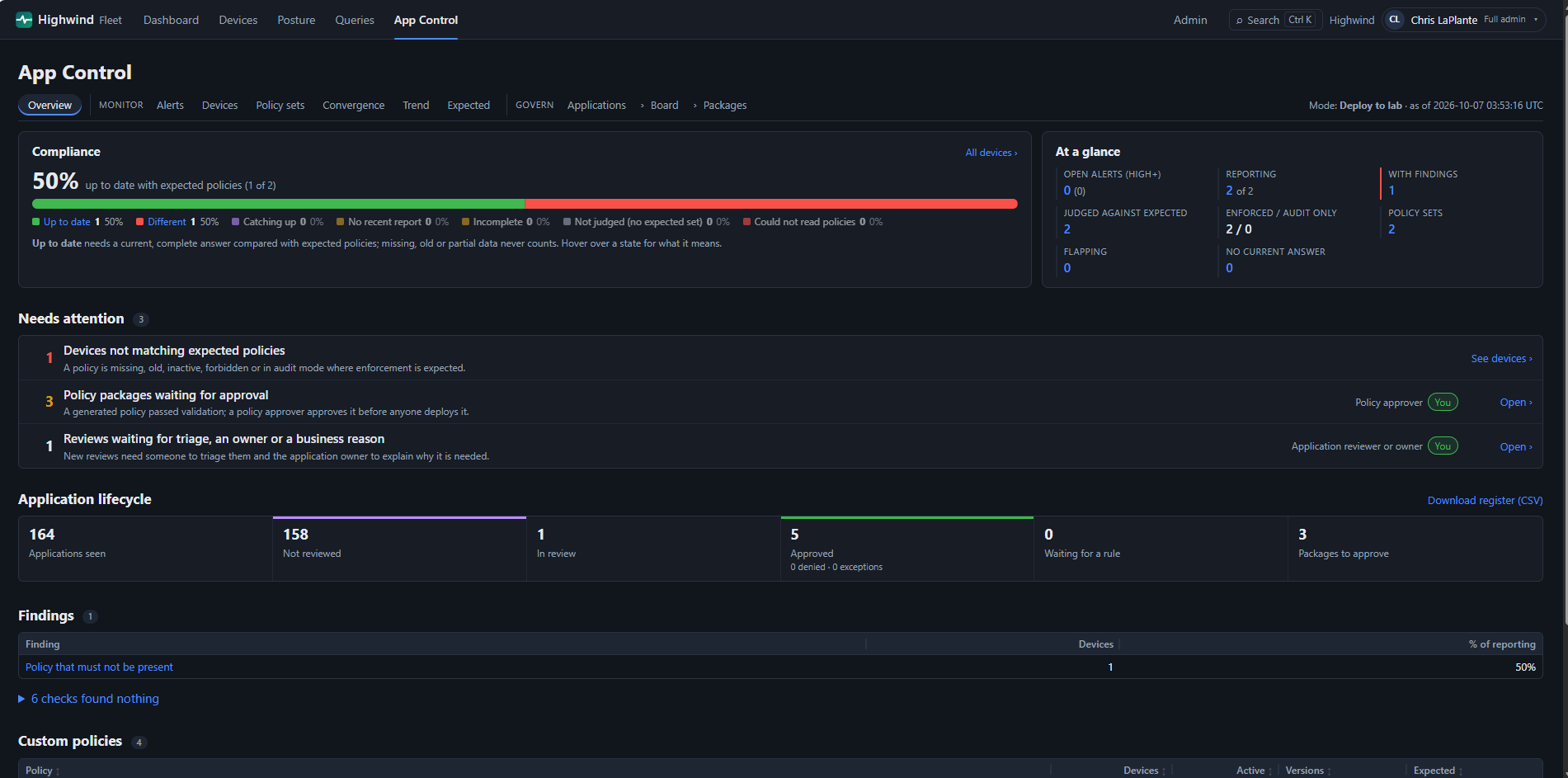 App Control overview: who is up to date with expected policies, what needs a decision, and where each application is in its lifecycle
1. Turn it on
- Sign in as
Highwind.Adminand open Admin → App Control management (/admin/app-control). - Choose mode Visibility Only and tick Policy inventory. Save. The change is audited as
AppControlSettingsChangedwith your name. - Within about a minute the reporting worker builds the inventory from the newest posture answers, and App Control appears in the navigation. Devices that have not refreshed posture yet show as not reported; Full posture sync (all devices) on Posture speeds that up.
| Mode | Status in this release |
|---|---|
| Disabled | Default. Nothing is collected or derived; the menu item is hidden |
| Visibility Only | Available. Policy inventory, expected sets, findings, rollout, alerts; application inventory, local events and Advanced Hunting import when their switches are on |
| Governance | Available. Everything above plus the Application Control Board (with the Governance switch) |
| Recommend | Available. Everything above plus rule candidates, rule proposals and rule approval (with the Rule recommendations switch), and impact simulation before approval (with the Policy simulation switch). Changes no policy |
| Generate | Available. Everything above plus policy packages: XML built from approved rules, validated, approved and downloaded (with the Policy package generation switch). You deploy them with your own tools |
| Deploy to Lab, Deploy by Rings, Full Lifecycle | Parked. Not shown in the portal in this release |
Lower modes never enable higher-risk capabilities: each capability switch has a minimum mode, and both must allow it.
2. Say what each group should run
App Control → Expected (needs Baselines). Create a default set, and optionally one per device tag, OU or environment. Every policy your devices report is listed with one Requirement choice:
- Not checked (default).
- Must be active.
- Must be active + enforcing.
- Must be present (on disk is enough).
- Must NOT be present: for a retired, test or competing policy. A device that still carries it gets the finding Policy that must not be present and is Drifted.
Add an optional minimum version, or type another GUID in the last row. Tick Flag other policies to also report custom policies the set does not mention. The sets table shows each set’s must-have (✓) and must-not (✕) policies. A device uses its tag’s set, then its OU’s, then its environment’s, then the default. Changes are re-judged on the next worker pass.
3. Read it
| Page | Shows |
|---|---|
| Overview | Devices reporting, devices with findings, findings by kind, and every policy seen with devices, active count, versions and a mixed flag (active on some devices and not others, or at several versions) |
| Devices | Every device with its group, expected set, Code Integrity modes and findings; filter by finding, group, policy or name; cursor-paged |
| Device | Each policy on the device, each expectation judged with the actual state, and peer gaps: policies that at least 60% of its group (three or more devices) have and it does not |
| Policy | Versions in use and rollout by group (devices with it, active, %) |
| Finding | Meaning |
|---|---|
| Missing | An expected policy is not on the device |
| Below minimum version | Present, but older than the set’s minimum |
| Not active | On disk but not active, where Active is required |
| Audit only | Enforcement is required, but the device’s user-mode Code Integrity is auditing |
| Unexpected | A custom (non-system) policy outside the set, when the set flags them |
| No policy list | The device could not list its policies (CiTool needs Windows 11 22H2 or later). Never counted as compliant |
| Not reported | No App Control answer in the last 24 hours (Fleet__Reporting__AppControlStaleAfterHours) |
Operators see only the devices in their Access scope, counts included. Turning the module or the switch off removes the derived inventory on the next pass; the posture answers it came from are untouched.
Settings
| App setting | Default | Meaning |
|---|---|---|
Fleet__Reporting__AppControlStaleAfterHours | 24 | Older inventory is not reported (1–720) |
Fleet__Reporting__AppControlBatchSize | 500 | Answers read per database round trip (50–5,000) |
Fleet__Reporting__AppControlMaxDevicesPerPass | 50000 | Most devices refreshed per worker pass; the rest follow on the next (500–1,000,000) |
Fleet__Reporting__AppControlRebuildHours | 24 | Hours between complete rebuilds, which pick up tag changes (1–168) |
Fleet__Reporting__AppControlConvergenceHours | 24 | After an expected set changes, devices off it are Pending convergence this long, then Drifted (1–720) |
Fleet__Reporting__AppControlOscillationChanges | 4 | Policy-set changes within 7 days that mark a device Oscillating (2–100) |
Fleet__Reporting__AppControlHistoryRetentionDays | 400 | Days of policy-set history and daily App Control snapshots kept (8–3,650) |
4. Policy sets, drift and trend
Each device’s active policies are reduced to one policy-set fingerprint: a SHA-256 over:
- the sorted policy IDs, base policy and versions
- the SHA-256 of each active
.cipfile - CiTool’s options, active state and the audit/enforce mode
Names and times are left out, and Windows’ own policies count by ID only, so two devices share a fingerprint only when they evaluate code the same way. The agent sends hashes, never the policy file.
| State in the portal | API / URL name | Meaning |
|---|---|---|
| Up to date | Matching | Current, complete, and exactly what its expected set requires |
| Different from expected | Drifted | Different from its expected set, and the set changed more than 24 hours ago |
| Catching up | PendingConvergence | Different, but the set changed within AppControlConvergenceHours; the rollout may still be arriving |
| No recent report | Stale | No answer within AppControlStaleAfterHours, or none at all |
| Incomplete | Incomplete | Policy list missing or truncated, or the mode unknown where enforcement is required |
| Not judged (no expected set) | Unknown | No expected set applies. Peer gaps are shown, for information only: the most common state is never treated as the expected one |
| Could not read policies | CollectionFailed | The device could not report App Control |
| Tab | Shows |
|---|---|
| Overview | Devices per state, distinct policy sets, devices whose policies keep flapping |
| Devices | State and policy-set columns; filters for state, expected set, policy set and Flapping (oscillating) |
| Policy sets | Every fingerprint with devices, matching and drifted counts and groups; groups running more than one set; open one for its policies, its devices by group, Windows build and state, and why it does or does not match each expected set; Compare any two |
| Convergence | Per expected set: when it last changed, up to date, catching up, never matched, caught up, and the typical (median) and slowest-10% (90th percentile) hours to match |
| Trend | One point a day for the whole fleet and the largest groups: % matching, drifted, stale or incomplete, enforced user mode, distinct sets, changes, oscillating, policy versions |
| Device | State, collection gaps, policy set and how long it has held it, the last 20 changes with What changed, each difference from its expected set, and each policy’s options and hash |
| Expected | Each set now states its strategy: Allow-list (only trusted applications run) or Deny-list (everything runs except what is blocked). It labels the set for reviewers; it does not change how devices are judged or restart convergence |
A device is Flapping (oscillating=true in the API) when it returns to a policy set it left within 7 days, or changes four or more times in 7 days; usually two deployment channels fighting. A restricted operator can open only policy sets their devices carry or carried, and only their own groups’ trend.
Try it
- Deploy the schema (
ManagementRound7), the API and the portal; install the agent MSI on a test device. The migration makes the next pass re-read every answer. - On the device page, choose Full posture sync; after its next poll and a worker pass, App Control → Device shows a policy set and no collection gaps.
- In Expected, set the strategy and require the device’s policy. The device becomes Up to date; Convergence shows the hours it took.
- Require a policy the device does not have. It shows Catching up for 24 hours (then Different from expected), and Why it does not match lists it as Missing.
- Deploy a new version of a policy to the device and refresh posture. The device page records the change; What changed shows the version and hash.
5. Alerts and notifications
Highwind turns the drift above into stateful alerts: one per expected set (and policy), never one per device, so a fleet-wide problem is one alert, not a thousand. An alert:
- raises once
- counts each time it is seen again
- resolves itself when the condition clears
- comes back only if the condition returns
Alerts need only Policy inventory; sending them to Teams or a webhook also needs the Notifications switch (off by default).
| Alert | Raised when (settled devices only: fresh, outside the convergence window) |
|---|---|
| Policy drift | Devices of a set are Drifted |
| Missing expected policy | An expected policy is absent or not active |
| Unexpected policy | A custom policy outside the set (sets that flag other policies), or a policy the set says must not be present (one alert per policy, at least Medium) |
| Policy version mismatch | An expected policy below its minimum version |
| Enforcement mode mismatch | Audit mode where enforcement is required (at least Medium) |
| Rollout not converged | A set changed in the last 14 days and fewer than 95% of its devices match |
| Collection stale / failing | 20% or more of a set’s devices are stale, or fresh devices cannot list policies |
| Approved but still blocked | An application the Board approved (or excepted) was blocked after the decision; see Board decision alerts |
| Denied but still running | An application the Board denied ran in audit mode after the decision |
Severity follows the share of the set affected: 40% or more Critical, 10% High, 2% Medium, otherwise Low. At least three devices must be affected (or every device of a smaller set). A New alert not acknowledged within 24 hours escalates once.
- See them. App Control → Alerts (the overview shows open High and Critical). Filter by open/all, state, type, minimum severity and expected set. Restricted operators see only their tags’ sets.
- Work them (needs Baselines). Open an alert: Acknowledge, Assign (with a due date), Investigating, Waiting, Resolve, Suppress until (at most 90 days), Close, Reopen or Comment. Resolve, suppress, close and comment need a note. Show the affected devices opens the evidence. If someone else changed the alert since you opened it, your action is refused (
409) and the page reloads. Every action is in the activity log with the alert’s correlation ID. - Add a channel (API configuration, not the portal, so no webhook URL is ever stored in SQL or shown):
For Teams, create the URL with the Workflows app (“Post to a channel when a webhook request is received”). AFleet__AppControlAlerts__PortalBaseUrl = https://highwind-portal.contoso.com Fleet__AppControlAlerts__Channels__0__Name = SecOps Teams Fleet__AppControlAlerts__Channels__0__Kind = Teams Fleet__AppControlAlerts__Channels__0__Url = @Microsoft.KeyVault(SecretUri=https://<vault>.vault.azure.net/secrets/appctl-teams) Fleet__AppControlAlerts__Channels__0__TenantIds__0 = <your Entra tenant ID>Webhookchannel gets JSON ("schema": "highwind.appcontrol.alert/1") and, withChannels__0__SigningSecret, the headersX-Highwind-TimestampandX-Highwind-Signature: sha256=<HMAC-SHA256 of timestamp + "." + body>. URLs must behttps://on an allowed host (*.webhook.office.com,*.logic.azure.com,*.environment.api.powerplatform.com; add yours withFleet__AppControlAlerts__AllowedHosts__3). Every channel must list itsTenantIds(or setAllTenants = trueto share it on purpose); a channel naming neither is refused rather than opened to every tenant. A bad channel stops the API at start-up with a message that names the channel, not its URL, and webhook URLs are kept out of the logs. - Turn it on. Admin → App Control management: tick Notifications. Then Admin → App Control notifications: add a subscription (channel, lowest severity, types, escalations, resolved) and press Send test.
Messages carry the alert type, severity, expected set (or application), policy, summary, number of affected devices and a portal link; never device names, paths or hashes. Failed deliveries retry with back-off (up to 6 hours apart, 6 attempts) and are then shown as Gave up with a Retry button; each channel sends at most 20 messages an hour. Needs migration ManagementRound8; no agent change.
App setting (Fleet__AppControlAlerts__…) | Default | Meaning |
|---|---|---|
IntervalMinutes | 60 | Least time between evaluations (5–1,440) |
MinimumDevices | 3 | Affected devices needed to raise an alert (Board decision alerts: devices that make it High) |
DecisionEvidenceDays | 7 | Days of application events that keep a Board decision alert open (1–90) |
HighPercent / CriticalPercent | 10 / 40 | Share of a set that makes an alert High / Critical |
StalePercent | 20 | Stale share that raises Collection stale |
ConvergenceTargetPercent / ConvergenceAlertDays | 95 / 14 | Rollout target and window |
EscalateAfterHours | 24 | Escalate New alerts not acknowledged (0 = never) |
MaxOpenAlerts | 2000 | Open alerts per tenant |
MaxPerChannelPerHour / MaxAttempts | 20 / 6 | Channel throttle; attempts before giving up |
RetentionDays / DeliveryRetentionDays | 365 / 30 | Closed alerts and finished deliveries kept |
Test it
- Deploy the schema (
ManagementRound8), API and portal. With an expected set requiring a policy that three test devices lack, wait out the convergence window (or setFleet__Reporting__AppControlConvergenceHoursto 1 in a lab). - After the next evaluation, Alerts shows one Missing expected policy alert for the set, not one per device. Refresh posture again: the alert’s observation count rises; no second alert appears.
- Acknowledge it, then try to act from a second browser tab opened earlier: the action is refused and reloads. Check Admin → Activity log for
App Control alert changed. - Deploy the policy to the devices and refresh posture: the alert resolves itself (“Condition no longer observed”).
- Configure a Teams channel, tick Notifications, subscribe at Low and above, Send test: the card arrives in Teams with no device names.
6. Applications and the Application Control Board
Highwind now builds an application catalog from what devices have installed and what App Control audited or blocked, and gives an Application Control Board a place to decide what may run. Decisions are records with owners, reviews, conditions, expiry and a full history; a decision changes no policy (rules and deployment are later phases).
| Evidence | From | Needs |
|---|---|---|
| Installed applications | Agent: Programs and Features entries for the machine and each signed-in user, plus provisioned packages. Name, publisher, version. Install locations and uninstall commands are never read | Switch Application inventory + device policy Allow App Control management reporting. Once a day per device |
| Local audit and block events | Agent: Code Integrity 3076 (audit), 3077 (block), 3089 and AppLocker MSI and Script, grouped by file, hash, signer and policy. User-profile folder names become *; no message text or SIDs | Switch Local events + the same device policy. Hourly per device |
| Defender Advanced Hunting | A CSV you export and upload. Execution evidence, not an inventory | Switch Advanced hunting; administrators only |
Each record is matched on the strongest identity it carries, in this order:
- package family
- signer + product + original file name
- signer + file name
- installed publisher + name
- unsigned file + folder + hash
- hash only, last
Similar names are never merged automatically. Each application shows how it was identified and with what confidence; an administrator can merge two records (for example the installed product and its blocked executable) or separate them again, with a reason, and nothing observed is rewritten.
Turn it on
- Deploy the schema (
ManagementRound9), then the API and portal. - Admin → App Control management: tick Application inventory and Local events (Visibility Only is enough). For the Board choose mode Governance and tick Governance. Leave Separation of duties ticked unless you cannot staff the roles.
- On the devices, enable Fleet Agent → Allow App Control management reporting (registry
FleetAppControlReportingEnabled= 1, new ADMX inHighwind-ADMX.zip) and restartHighwindFleetAgent. A device without it never reports applications or events, whatever the tenant setting. - Admin → Access: give people the Board roles. Presets App Control reviewer (triage, owners, comments, requests, send to Board, close), security reviewer, technical reviewer and Board member (decide, retire), or tick them under Custom.
Work the Board
-
and past reviews. Open review sits at the top of the application page.
- App Control → Board lists reviews by state, with your permissions and whether separation of duties is on. On a review, a short Decide or respond row offers Approve, Deny, Comment and Assign owner (people without the Board role see Send to Board instead of Approve and Deny). Approve or Deny on a review that is not with the Board yet sends it there and records the decision in one click (both steps are in the history). Everything else (approve with conditions, temporary exception with an expiry within 180 days, defer, recertification date within 2 years, justification, security and technical reviews, close) is under More actions. A Next step box always says what has to happen next and, when you cannot decide, why (no Board role, or separation of duties: the person who opened or owns the review cannot decide it unless the waiver is on).
- With separation of duties on, whoever opened the review, anyone named its owner and anyone who recorded a security or technical review since it was last reopened cannot record the decision, and an owner cannot record either review; the refusal says why. Name owners by their sign-in name so they are recognised. Administrators can triage, comment and assign owners, but cannot record reviews or decide unless given those roles in Access, or unless separation of duties is waived; then each such action is recorded as administrator acting as ….
- Approvals past recertification and exceptions past expiry show as Due (filter Due on the Board). Every action is in the review history and the activity log.
Import Advanced Hunting events
- In Microsoft Defender, run a query such as:
and export the result as CSV (8 MB and 50,000 rows at most; narrow the time range for more).DeviceEvents | where Timestamp > ago(7d) | where ActionType startswith "AppControl" and (ActionType endswith "Audited" or ActionType endswith "Blocked") | project Timestamp, DeviceId, DeviceName, ActionType, FileName, FolderPath, SHA256, InitiatingProcessFileName, ReportId, AdditionalFields - App Control → Applications → Import (administrators): choose the file and Import. The result shows rows read, accepted, duplicates (already imported) and rejected, with warnings for skipped action types. Uploading the same file again adds nothing.
- The applications appear at once, with source Advanced Hunting on their events; devices that are not enrolled in Highwind are listed by name as imported, not enrolled and only to unrestricted operators and administrators.
| App setting | Default | Meaning |
|---|---|---|
Fleet__Management__AppControlInventoryIntervalHours | 24 | Hours between installed-application answers per device (1–720) |
Fleet__Management__AppControlEventIntervalMinutes | 60 | Minutes between App Control event answers per device (15–10,080) |
Test it
- On one test device set
FleetAppControlReportingEnabled= 1 and restart the service; tick both switches; Full posture sync on the device. After its next check-in and a worker pass, Applications shows its installed software and the Ingested time. - On a device with an audit-mode policy, run an unsigned tool, sync again: it appears with Audited events and the folder redacted under the user profile.
- Import an Advanced Hunting CSV twice: the second import reports every row as a duplicate.
- With three test accounts (reviewer, security reviewer, Board member): open a review as the reviewer, request a security review, record it as the security reviewer, then try to Decide as the reviewer (refused: needs Board member) and as the security reviewer (refused: separation of duties). Decide as the Board member. Check the history and the activity log.
- Untick Local events: after the next pass the agent-reported events are gone; imported ones stay while Advanced hunting is on.
Board decision alerts
Once the Board decides, Highwind checks that the fleet follows the decision and raises an alert when it does not. Needs Governance and Policy inventory (the alert engine) and migration ManagementRound10; no agent change.
| Alert | Decision | Raised by | Usually means |
|---|---|---|---|
| Approved but still blocked | Approved, Approved with conditions, Temporary exception | Block events after the decision | No allow rule yet (Needs rule), or the policy carrying it has not reached those devices |
| Denied but still running | Denied | Audit events after the decision (it ran; a policy only logged it) | No deny rule yet, or that policy is in audit mode |
- Only events last seen after the decision and in the last
DecisionEvidenceDays(7) count, so the blocks that brought an application to the Board never raise one, and the alert resolves itself once the rule has reached the devices and the window has passed. - Only the application’s newest review is followed, and only while its decision stands: Deferred, Superseded, Retired, a reopened review, an expired temporary exception, or a closed decision followed by a newer review does not raise one. Events of records merged into the application count.
- One alert per decision, from one affected device (it is worth knowing); High from three devices (
MinimumDevices), otherwise Medium. The alert names the application and links to its page; it never names devices, paths or hashes. Application alerts have no expected set, so only unrestricted operators see them.
Test Board decision alerts
- Deploy the schema (
ManagementRound10), then the API and portal. Have Governance, Policy inventory and Local events on, and a test device with an enforced policy that blocks a tool. - Run the tool so it is blocked, sync, and take it through the Board to Approved. After the next evaluation there is no alert (those blocks came before the decision).
- Run the tool again and Full posture sync. After the next evaluation (up to
IntervalMinutes, 60), App Control → Alerts shows one Approved but still blocked alert naming the application, 1 device, Medium; Open the application and its review goes to the application page. With a Teams channel subscribed, the card shows Application and no device name. - Deny a second tool that a policy only audits, run it, sync: one Denied but still running alert.
- Stop running the tools. After
DecisionEvidenceDays(set it to 1 in a lab) both alerts resolve themselves.
7. Rule recommendations
A Board decision says whether an application may run; a rule says how a policy recognises it.
In mode Recommend, Highwind builds rule candidates for a decision from the application’s own events, the same way every time for the same evidence (no AI), most maintainable first. A rule author proposes one and a different rule approver approves it.
Approving a rule changes no policy: writing and deploying the policy are later, separately authorised steps.
| # | Rule kind (default order) | Built when | Notes |
|---|---|---|---|
| 1 | Package family | The application is a packaged (MSIX/AppX) app | Every version, no file list |
| 2 | Signer + product | Files are signed and carry a product name | Signer limited to one product; minimum version for allows |
| 3 | File publisher | Signed files carry an original file name | Signer limited to the named files |
| 4 | File attributes | Unsigned files carry an original file name | Names and minimum version |
| 5 | Protected path | Allow only; a vendor folder under Program Files or Windows | Needs a written risk acceptance; never the recommended one |
| 6 | Hash | Any file with a SHA-256 | Narrowest; changes with every update |
Never built: a signer-only (publisher-wide) rule, a path rule for a user-writable folder (Users, AppData, ProgramData, Temp, Downloads, network paths …) or for a folder that contains one (System32 and SysWOW64 hold Tasks and spool), or a path rule for a deny.
Each candidate shows:
- Coverage: events, devices, files, versions; files left out; other applications it would also match.
- Breadth and narrow risk, with reasons.
- Target: for an allow, the blocking base and whether it accepts supplemental policies; for a deny, the base.
- Conflicts: several blocking bases, a Microsoft-managed block list, a base without Allow Supplemental Policies, an opposite rule on the same files.
- Known gaps: coverage is projected; certificate chain, folder permissions, scripts/MSI and drivers are not verified.
- For a deny, its impact: versions, parent processes, updaters and helpers, same-signer and approved same-signer applications, devices, owner.
The recommended candidate is the first that covers at least 80% of the events, matches no other application, is not highly broad and is not a path rule.
| Step | Who (Admin → Access preset) | Separation of duties |
|---|---|---|
| Generate candidates, propose, withdraw | App Control rule author | Not the person who recorded the Board decision |
| Approve or reject | App Control rule approver | Not the proposer and not the decision maker |
Review states: Approved / Denied / Temporary exception → Needs rule (generate) → Rule proposed → Rule approved; reject or withdraw goes back to Needs rule.
- The decision stands throughout, so recertification, exception expiry, Due and the decision alerts keep working.
- Reopen, Retire and an expired exception supersede every candidate and proposal; Close keeps an approved rule.
- Waiving separation of duties (small teams) lets one person do every step, still audited.
Turn it on
- Deploy the schema (
ManagementRound11, withsqlcmd -b -I), then the API, then the portal. No agent change. - Admin → App Control management: mode Recommend, keep Governance on and tick Rule recommendations. Save.
- Admin → Access: give App Control rule author and App Control rule approver to two people other than your Board members.
- Optional App Service settings (defaults shown):
Fleet__AppControlRules__EvidenceDays= 90 (7–365),Fleet__AppControlRules__MaxHashes= 200,Fleet__AppControlRules__MaxEventGroups= 50000. To change the order,Fleet__AppControlRules__Preference__0=SignerProduct,__1=FilePublisher, … (kinds left out are never built). Invalid values stop the API at start-up.
Test it (four test accounts)
- On App Control → Board, open an application’s review: three steps run across the top (1 Approve or deny, 2 Build the rule, 3 Build the package) with the current one highlighted. Right after an approval (also after a reopen and a new approval, when the earlier rules show Superseded) step 2 is highlighted and shows the rule builder.
- Give the Board member who decided Rule author as well: Find rules is not offered to them (step 2 says why), and calling
POST …/rules/generatedirectly returns403. (When one person holds every role and separation of duties is waived, Approve finds the rules at once.)
open See every file and its rule to give
- For an allow rule, pick the base policy it extends (a supplemental policy extends one base): the list shows your base policies active on the devices that have the application, then those in Policies and in expected sets; leave it on the suggested one to use the policy that blocked the application. Use this rule: the rule is chosen and the page says a rule approver confirms it next (you cannot approve your own rule unless separation of duties is waived; then it is simulated and approved in the same click).
- As the rule approver: step 2 shows the chosen rule and Approve rule (it simulates the impact first when that is required): Rule approved, other candidates Superseded, and step 3 offers Open Packages. To send a rule back, open All suggested rules and advanced actions: Reject without a note is refused; with a note the review goes back to step 2.
- Check that nothing was deployed: App Control → Policies is unchanged. Admin → Activity shows each step as App Control review changed.
- As an administrator, Reopen the review (with a reason): the approved rule is Superseded and the review is back at Needs triage.
- Deny a second application and generate: every candidate is a deny, no path rule is offered, and Details shows the deny impact and the gap “Deny rules take effect only in a base policy”.
- Set the mode back to Governance: the Rule section disappears and the rule routes answer
403 HW-APPCTL-001.
With Policy simulation on (section 8), Approve appears only after the rule’s impact has been simulated.
8. Rule impact simulation
Before a rule is approved, simulate what it would do across the fleet. Highwind replays the rule against the events it has recorded and the policies each device reported, and shows what it would allow or block, where, and what it could not tell. A simulation reads telemetry only: it changes no policy, review state or proposal. Every figure carries a badge saying how it is known:
| Badge | Means | Example |
|---|---|---|
| Observed | Counted from recorded events or inventory | The rule matches 412 blocked events |
| Projected | What the rule is expected to do, from the policies each device reported. Not a fact | 312 of them would be allowed; 40 devices would block it |
| Unknown | Could not be worked out from the data held | Devices known only from Advanced Hunting imports; installed count with application inventory off |
| Per-device outcome | When |
|---|---|
| Would be unblocked / Would be blocked | The target base policy is active on the device (and, for an allow, accepts supplemental policies) |
| Partly unblocked | Allow: some of the device’s blocked files are not matched, or were blocked by another base policy that must allow them too |
| Rule would not apply | The target base is not active there, or does not allow supplemental policies |
| Stale inventory | The device’s App Control inventory is older than Fleet__Reporting__AppControlStaleAfterHours |
| Unknown | Imported device, no App Control inventory, Policy inventory off, or target not known |
Allow results show:
- matched blocked and audit events, and blocked events the rule misses (with the files);
- events projected to be allowed or to stay blocked by another base;
- devices fully or partly unblocked, versions and binaries covered;
- unsigned binaries not covered, and other applications it would also trust.
Deny results show:
- executions and devices that would be blocked, devices with it installed, device groups affected;
- other applications and approved applications it would also block;
- two heuristic lists: critical Windows, Defender, Intune and management components, and installers, updaters and deployment tools (by file and parent process name).
Both kinds list:
- conflicts (another application’s Board decision, a Microsoft system policy, several active bases, an opposite rule)
- a breakdown by device group (with the expected set) and by Windows build
- the device list
- what is missing, stale or not evaluated (the rules inside your policies, explicit denies, files that never ran, certificate chains, folder permissions, scripts/MSI, drivers, ISG and managed installer)
Approval gate. A proposed rule can be approved only with a current simulation: of the same rule and target, from the last 72 hours. Otherwise Approve is not offered and the API answers 409 (audited). Separation of duties is unchanged; the approver may run the simulation.
Results are stored once for the tenant; device names and groups outside the reader’s device scope are left out of the lists, and the page says how many.
Turn it on
- Deploy the schema (
ManagementRound12: one new table,sqlcmd -b -I), then the API, then the portal. No agent change. - Admin → App Control management: mode Recommend with Governance and Rule recommendations on; tick Policy simulation. Save.
- Optional App Service settings (defaults shown):
Fleet__AppControlSimulation__RequireBeforeApproval=true,Fleet__AppControlSimulation__MaxAgeHours= 72 (1–720),Fleet__AppControlSimulation__MaxEventGroups= 50000 (1,000–200,000),Fleet__AppControlSimulation__MaxDevicesListed= 200 (10–2,000),Fleet__AppControlSimulation__KeepPerProposal= 10 (1–100). Invalid values stop the API at start-up. - For projections rather than Unknown, keep Policy inventory on and the target base in App Control → Policies (its Allow Supplemental Policies and audit options are read from there).
Test it (rule author, rule approver, a reviewer)
- Follow section 7 up to Rule proposed. The Rule table shows an Impact link under each live proposal, and a hint that Approve waits for a simulation.
- As the rule approver: the action list has no Approve. Calling
POST …/rule-proposals/{id}/actionswithApprovereturns409“Simulate the rule’s impact first”. - Open Impact → Simulate impact. Check: a summary that starts “Projected:”; figures with Observed, Projected and Unknown badges; Missing data and Not evaluated lists; the device table with an outcome per device; the badge Current.
- Back on the review: the proposal shows Simulated and Approve is offered. Approve. App Control → Policies is unchanged; the review history and Admin → Activity show “Impact simulated”.
- Simulate a deny rule (section 7, step 8) for an application whose file name is, for example,
setup.exeor that runs from System32: Installers, updaters and Critical components list it, and Conflicts warns. - As a reviewer without rule permissions: the Impact page opens read-only (no Simulate button);
POST …/impactreturns403. As a tag-scoped operator: devices outside your tags are left out and counted. - Untick Policy simulation: the Impact links disappear, the impact routes answer
403 HW-APPCTL-001, and Approve works without a simulation again.
9. Application files and rule plan
Click an installed application to see every file it brings and the rules that would allow them, in your order of preference. The device lists the files of that one application and sends back hashes and signature details; file contents never leave it.
- What you see. Each file (relative path, kind, version, signer, Authenticode hash), how many devices have it, and how many block it now or would block it when enforced (audit). A signer rule says so when the issuing certificate’s hash was not reported (a policy package needs it). A publisher-wide rule is never suggested; at the protected-folder step, unsigned files get exact file paths (only those files, at those paths), while a folder-wide rule is only listed as an option because it needs a risk acceptance; scripts and installers are left to your policy’s script rules.
- Your order. Admin → App Control management → Rule preference: rank up to six kinds; a kind set to (not used) is never recommended. Use the service default order resets it.
- Compare New-CIPolicy levels. The scan already records what
New-CIPolicy -ScanPathreads for each file (hashes, original file name, version, signing certificate and issuing CA with their TBS hashes), so the page shows, for the same files, what every-Levelwould give with your-Fallbackorder:Hash,FilePath,FileName,LeafCertificate,FilePublisher,SignedVersion,PublisherandPcaCertificate. Each row shows how many rules, how many files the level allows and what each fallback adds, whether it is too broad, what it trusts in plain words, what happens after an update, and the exact PowerShell command to cross-check on a device. No PowerShell runs on your devices and no extra scan is needed. Set the default under Admin → App Control management → New-CIPolicy level and fallback (defaultPublisher,FilePublisher,SignedVersion,PcaCertificate,FilePath,Hash,FileName; up to 7 levels). - Rules built the same way. On the Board, Pick the rule offers this same plan: a short table per option with, for each step, the rule type, what it means, how many files it allows and which ones. Step 1 (for example Signer + product) takes every file it can; only the files left over go down your order. The recommended plan follows your order exactly; the other plans keep step 1 and let you choose how the files left over are allowed (exact path, hash, or file attributes), so you pick the fallback without reading XML. Plans use the file scan and the event logs, so installed files that have not run yet are included and files outside the install folder that did run are caught. When the application was scanned again after the options were built, the Board says so and offers Update the options. The New-CIPolicy level set (
-Level <first> -Fallback <rest>) and single rule types are still offered under Other ways. Packages write the levels as New-CIPolicy does (Publisher = issuing CA + publisher name; PcaCertificate = issuing CA; LeafCertificate = signing certificate; SignedVersion = publisher + minimum version; Hash = Authenticode SHA-256 and SHA-1). - Hashes collected. Per file: flat SHA-256, Authenticode SHA-256 and (agent 3.7.0) Authenticode SHA-1. Page hashes are not collected yet, so hash rules do not cover HVCI page validation. Rescan applications after updating the agent to get SHA-1 and signing-certificate hashes.
- Scripts and installers. App Control checks scripts run by the Windows Script Host (
.js,.vbs,.wsf): not allowed means blocked. PowerShell scripts that are not allowed run in Constrained Language Mode, and installers (.msi) are checked by Windows Installer. These can only be allowed by their hash or their signature, so the builder offers just those and says why. Batch files (.bat,.cmd) are not checked by App Control and.htafiles are blocked whenever a policy is on, so both are left out with a note. - Safe by design. The request names the application, never a folder: the device finds the folder from its own install records and refuses drive roots, Windows and system folders, Program Files, ProgramData and profile roots; links are not followed; only executables, libraries, drivers, installers and scripts are read. The operation cannot be sent as a query or request. Scanning needs Run queries on the device and is audited.
Turn it on
- Deploy the schema (
ManagementRound13,sqlcmd -b -I), the API, the portal, and the 3.7.0 agent MSI (file scans and certificate hashes in events are new in the agent). - On the devices that may be scanned (a pilot group is enough: Scan files asks the 3 devices that reported the application most recently; each answers on its own and the page merges their answers): ADMX Highwind → Fleet Agent → Allow App Control application file scans, or
reg add HKLM\SOFTWARE\Policies\Highwind /v FleetAppControlFileScanEnabled /t REG_DWORD /d 1 /f, thenRestart-Service HighwindFleetAgent. - Admin → App Control management: tick Application file scans (any mode from Visibility only). Optionally set the Rule preference. Save.
Test it
- App Control → Applications, filter Installed, open an application installed on a scan-enabled device (for example 7-Zip or Notepad++). The page opens with the application’s key facts as cards (publisher, signed, installed on, blocked, audited, versions, last seen) and two steps: 1 Scan the files and 2 Decide on the Board. Without a scan, step 2 says Scan first and its button reads Open review anyway.
- In step 1, click the device box and type part of a name: the list offers the devices that can answer (newest inventory first). Pick one to scan from that device only, or leave the box empty and Highwind asks up to 3. A name that is not in the list is refused with a message.
- Scan files. Step 1 shows who asked and when and which devices are still to answer; the button reads Waiting for answers… and the page updates itself every 15 seconds, for you and for any other admin who opens the application. After the device’s next check-in the banner shows the last answer (time, device, file count) and the page shows a summary (files, signers, unsigned, how many block now or would block), What to allow (for a signed vendor app: one signer + product rule per signing certificate covering the signed files; the folder rule sits under Other option, not needed, since it needs a risk acceptance) and the files, each with the rule that covers it.
- After the scan, the application’s details show its Install folder and programs, and Prevalence adds the events for its files that Code Integrity filed under other records; in Audit and block evidence those rows are marked In install folder or Loaded by its program.
- Filter the Applications list by Blocked now or Would be blocked (audit); on the application the files table shows which files block where.
- Set the Rule preference to Hash first and reload the application: the plan now starts with a hash rule. Reset it.
- Compare New-CIPolicy levels on the same application:
Publisheris first (Your default) and unsigned files are allowed by theFilePathorHashfallback;PcaCertificateneeds the fewest rules but is marked High (it trusts everything the issuing CA signed). Copy a row’s command, run it in an elevated PowerShell on the device, and compare the XML’s signer and file rule counts. Change the level under Admin and reload: the new default moves to the top. - On the Board, approve the application, then Use this rule on the first option (Level + fallbacks): it is simulated and approved in one step and the application moves to Packages. Build the package and check the XML:
ID_SIGNER_HWL_*signers for the Publisher/PCA levels and hash entries in pairs (SHA-256 + SHA-1). - On a device without the registry value: it is not offered. Scanning again while a scan waits:
409. APOST /fleet/querieswithGetApplicationFilesis refused.
10. Policy packages (XML)
Turns approved rules into App Control policy XML you can compile and deploy with your own tools. Highwind builds, validates, versions, hashes and records approval; it does not deploy.
| Package | Holds | Notes |
|---|---|---|
| Supplemental (one per base policy) | Every approved allow rule that targets that base | BasePolicyID = the base chosen when the rule was proposed (suggested: the policy that blocked the application). The base must have Enabled:Allow Supplemental Policies (checked when the base is in App Control → Policies). To use another base, reopen the review and propose again |
| Deny base (one per tenant) | Every approved deny rule | Windows ignores denies in a supplemental, so this is an extra base policy that allows everything else. Multiple-policy format (Windows 10 1903+). Built in audit mode unless you clear the box |
- Versions. Each build holds every rule currently approved for that package. The policy ID stays the same;
VersionExrises (10.0.0.1,10.0.0.2, …). A build with nothing new is refused. - What is written. Signer rules use the issuing certificate’s TBS hash plus the publisher name, always scoped to a product or file names and a minimum version (never publisher-wide). Hash rules use the Authenticode SHA-256. Folder rules only for protected vendor folders. If evidence is missing (for example only Advanced Hunting imports), the package is a Draft with errors that say what to collect.
- Checks. IDs and references, rising version, no publisher-wide signer, no user-writable folder, no path deny, no deny in a supplemental. Errors block approval; warnings (spoofable file names, enforced deny base, base options unknown) are shown.
- Two people. A Rule author builds; a different Rule approver approves or rejects (reason required). Approval also needs every rule still approved and, with simulation on, simulated as approved.
- Integrity. Same rules, same bytes. The SHA-256 is stored at build, re-checked at download and sent with the file and in the manifest. Every build, decision and download is audited.
Turn it on
- Schema
ManagementRound13, API, portal and agent as in section 9. - Admin → App Control management: mode Generate; keep Governance, Rule recommendations and Policy simulation; tick Policy package generation. Save.
- Upload your base policies to App Control → Policies so supplemental builds can check Allow Supplemental Policies.
Test it (rule author, rule approver)
- Get a rule to Rule approved (section 7 and section 8) for an application seen in local Code Integrity events or scanned in section 9.
- As the rule author: on the review, Open Packages highlights the application’s own row: 1 rule, status Ready to build. Click Build. The package opens as Validated, version
10.0.0.1, with the rule, its XML IDs and its simulation time. Expand Policy XML:PolicyType="Supplemental Policy", your base ID, a<Signer>withCertRoot Type="TBS"and aFileAttribRef. - Build is gone from the row (nothing changed; through the API a second build is refused, “Nothing changed”). Try to approve your own package: refused (separation of duties, audited).
- As the rule approver: Approve with a note. Download XML and Manifest appear. The file is named after the application and the policy ID, for example
IIS 10.0 Express_A244370E-44C9-4C06-8551-F6016E563076.xml(a merged policy uses its policy name). Check the hash:(Get-FileHash '.\IIS 10.0 Express_*.xml' -Algorithm SHA256).Hashequals the page’s SHA-256. Hash rules are named after their file, as New-CIPolicy names them (UpgradeApplicationHost.js Hash Sha256and… Hash Sha1). - On a lab machine:
ConvertFrom-CIPolicy -XmlFilePath '.\IIS 10.0 Express_{PolicyId}.xml' -BinaryFilePath ".\{PolicyId}.cip"compiles without errors; deploy to a lab device withCiTool --update-policy ".\{PolicyId}.cip"(base must allow supplementals) and confirm the application runs. - Merge applications into one policy: with two applications approved for the same base, tick both rows, type a name (optional) and Merge ticked into one policy. A new package opens (Holds: Merged policy, both applications, its own policy ID). Packages now shows the merged row with both names. Retire or approve a rule for one member: the merged row says Out of date: rebuild; Rebuild makes the next version. Each row has View and, once approved, Download XML. Deploy either the separate policies or the merged one, not both.
- Approve a deny rule and build the Deny base: two
FileName="*"allow rules, your<Deny>rules andEnabled:Audit Mode. - A rule built only from Advanced Hunting imports: the package is a Draft (“no usable issuer TBS hash” or “no Authenticode hash”) and cannot be approved; reject it with a reason.
- Delete a package and start the application again: on that Draft package open Delete this package and fix the application causing the errors. The application named in the error is ticked under Send back to Build the rule; add a reason and Delete package. Packages shows “Package … deleted. 1 application(s) went back to step 2”, the policy no longer lists that rule, and the review on the Board is at Build the rule (history: “Approved rule retired”). Scan the application’s files, build the rule again, then build the package. A package in a deployment plan cannot be deleted (409).
11. Deploy a package (you deploy)
Highwind never deploys a policy. It has no Intune write permission and the agent stays read-only. Download the approved package and deploy it with your own tool; Intune is recommended. Highwind then shows which devices carry it on Policy sets and Devices. (Ring-by-ring deployment plans are parked for a later release and are not shown in the portal.)
Deploy with Intune (recommended)
- On the approved package (section 10) choose Download XML and check
(Get-FileHash .\*.xml -Algorithm SHA256).Hashequals the package’s SHA-256. - Intune admin center → Endpoint security → App Control for Business → Create Policy (Windows). In Configuration settings choose Enter XML data and upload the XML. A supplemental needs its base deployed with Allow Supplemental Policies.
- Assign it to a small lab group first, then widen the assignment in steps (for example IT pilot, pre-production, everyone). Never assign straight to all devices.
- Watch App Control → Policy sets and Alerts: devices that picked the policy up, devices that differ, and new blocks. Use Full posture sync on a device to refresh Highwind sooner.
- If blocks appear, remove the group from the assignment (or put the previous version back), fix the rule on the Board, and build the next package version.
Other tools: Configuration Manager or your own publishing process (compile with ConvertFrom-CIPolicy and distribute the .cip); on a lab device, CiTool --update-policy.
12. Recertification, lifecycle alerts and the decision register
Keeps decisions current once the program runs. No schema change and no agent change: deploy the API and portal.
- Needs attention (App Control overview): one list of what is waiting, most urgent first; decision alerts, overdue recertifications, blocked applications nobody reviewed, Board decisions, exceptions ending, reviews, rules, packages and plans to approve, rollouts in progress. Each line says who acts, links to the filtered list, and shows You when you hold that role.
- Recertify approval (Board member): confirms an approval still stands and sets the next date (up to two years). The application owner cannot recertify its own approval. Temporary exceptions and denials are decided again after Reopen.
- Alerts: Recertification due (Low, High once overdue) and Exception expiring (Medium, High within 3 days), raised
Fleet:AppControlAlerts:LifecycleNoticeDays(14) days ahead. One alert per review; it clears when the Board recertifies or the exception ends. - Register CSV (Board page, Download register on the overview): every application with its decision, owner, justification, conditions, classification, exception end, recertification date and device counts. For auditors. No device names, paths or hashes. Every download is in the Activity log.
- Retention: file scan answers are replaced by a newer successful scan after a day and removed after
Fleet:Reporting:AppControlFileScanRetentionDays(180). Reviews, rules, packages, plans and alerts are kept as the audit record.
Test it
- Approve an application with a recertification date 10 days ahead. Within one alert evaluation, App Control → Alerts shows Recertification due (Low) for it, and the overview’s Needs attention lists Recertification due soon.
- As the application owner, try Recertify approval: refused (separation of duties). As a Board member, recertify with a date a year out: the history shows the old and new date and the alert resolves on the next evaluation.
- Grant a temporary exception ending in 2 days: Exception expiring appears with severity High.
- Download the register from the Board page; open it in Excel; check the application’s decision and dates. In Admin → Activity find App Control register exported. As an operator without App Control permissions, the download is refused and that refusal is logged too.