Overview
Client reporting gives you the Defender for Endpoint configuration of every Windows device in one table, as current state and as history.
Each endpoint collects a health report on a schedule and uploads it to a Function App in your Azure subscription. The Function App writes one row per report to Azure Table Storage. Power BI, or any tool that reads Table Storage, builds the fleet view from there.
There is no console to sign in to and no agent beyond the Highwind client.
Benefits
- Effective state. Reports describe what Windows enforces: Defender protection settings, attack surface reduction rule modes, firewall profiles, App Control, BitLocker and virtualization-based security.
- History. Several reports a day per device show when a setting changed, not only what it is now.
- Your tenant, your data. Reports stay in a storage account you own, under your retention and access policies.
- Low operational cost. A consumption Function App and Table Storage cost little for most fleets, and there is no server to patch.
Data flow
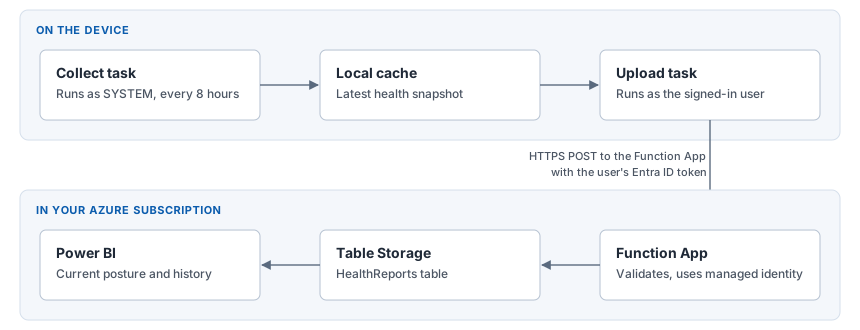
- The collect task runs as SYSTEM every 8 hours by default. It reads the local security configuration and writes a report to
%ProgramData%\Highwind\cache. - The upload task runs as the signed-in user. It sends the latest report over HTTPS with the user's Entra ID token.
- The Function App validates the report, flattens it and writes a row to the
HealthReportstable using its managed identity. - Power BI reads the table with the supplied query and measures.
Collection and upload are split because SYSTEM can read every Defender setting but cannot obtain a user token, and a standard user can obtain a token but cannot read every setting. Neither task needs more access than it has.
Requirements
| Area | Requirement |
|---|---|
| Azure | A subscription in Azure commercial or Azure Government, with permission to create a storage account, a Function App (PowerShell) and role assignments. |
| Entra ID | Permission to create an app registration for the Function App, and optionally Conditional Access policies. |
| Endpoints | Windows 10 1809 or later, or Windows 11. Entra joined or hybrid joined. Outbound HTTPS to the Function App and to Entra ID. |
| Deployment | A way to install the MSI and deliver policy: Intune, Configuration Manager or Group Policy. |
| Reporting | Power BI Desktop to open the template. A Power BI Pro or Premium license to share the dashboard. |
Deploy client reporting
Complete these steps in order. Most organizations finish a pilot in an afternoon.
- Azure deployment: create the storage account, Function App and app registration, and restrict access to the Function App.
- Endpoint deployment: set the upload policy, install the MSI and verify that a test device writes a row.
- Power BI reporting: open the template, connect it to the table and publish the dashboard.
Troubleshooting
Most reporting problems are an upload that cannot get a token or a Function App that rejects the caller. See Troubleshooting: client reporting for symptoms and fixes, and Verification for the commands that test each stage on a device.